
Coda — User Guide
- Active Filter Bank →
- Filter Name & File Path →
- Filter Channel ID & Tap Count →
- Filter Bit-Depth ID →
- Halo Controls Panel: Power Button, IR Window Selection →
- File Properties: Filter Metadata →
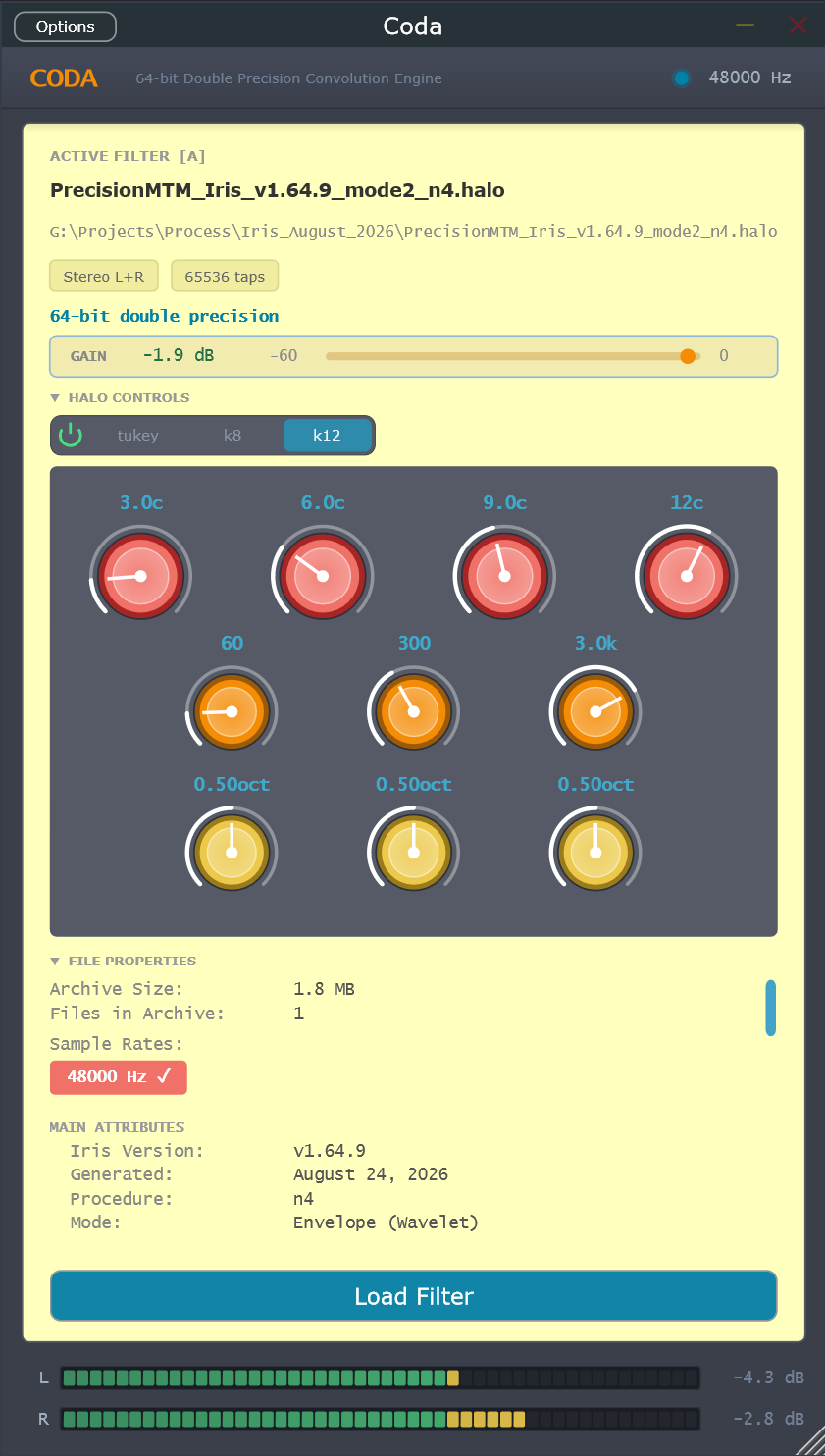
- ← Title, Level-Matched Bypass, Current Sample Rate
- ← Gain Compensation Control
- ← Excess Phase FDW Multi-Zone Cycle Controls
- ← Excess Phase FDW Zone Crossover Boundary Controls
- ← Excess Phase FDW Zone Boundary Range Controls
- ← Load Filter to Active Bank
- ← Output Level Meters
↓
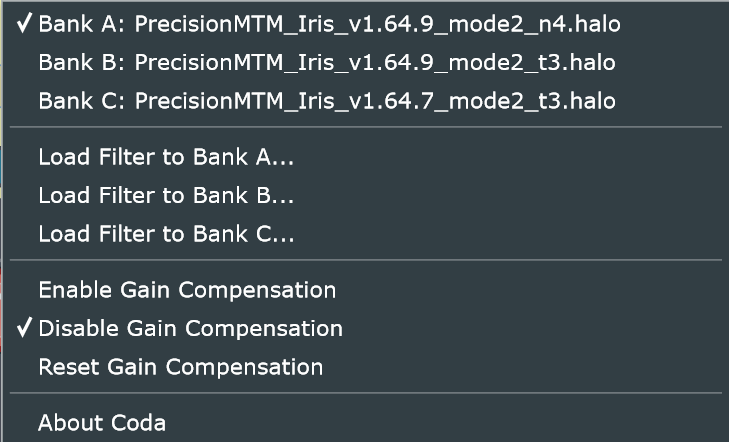
- Filter Bank Slots A-C →
- Independent Filter Bank Loaders →
- Gain Compensation Section →
Windows Installation
Navigate to C:\Program Files and, if it does not already exist, create a new folder here named Aperture Audio.
Copy/paste the standalone version of Coda from the zip into this new folder --> C:\Program Files\Aperture Audio\
Navigate to C:\Program Files\Common Files\VST3 and, if it does not already exist, create a new folder here named Aperture Audio.
Copy the main Coda.vst3 folder from the VST3 zip folder and paste it into this folder --> C:\Program Files\Common Files\VST3\Aperture Audio\
Mac OS Installation
Copy Coda.app from the extracted zip and paste it into your Applications folder.
Copy Coda.component from the extracted zip and paste it into: ~/Library/Audio/Plug-ins/Components
Copy Coda.vst3 from the extracted zip and paste it into: ~/Library/Audio/Plug-ins/VST3
Coda Setup
To begin using Coda, it must be activated with a valid license. Contact meridiansoundinfo@gmail.com for more information on licensing.
Once Coda is licensed, you'll be able to load your correction filter from Iris and start listening to music.
There are two ways you can use Coda:
- as a plugin
- as a standalone application
Currently supported plugin formats are:
- VST3 on Windows
- VST3 and AU on Mac
All major digital audio workstations should support these plugin formats. If yours for some reason does not, please contact meridiansoundinfo@gmail.com.
The Coda plugin functions like any other, though it is meant to be used only at the output stage, either on a monitor/listen bus or on the master bus as the very last plugin of the processing chain. In the latter case, you will need to completely disable Coda before rendering or bouncing. Using a monitor bus or listen bus allows you to set Coda once and forget that it's there, without the need to ever disable it.
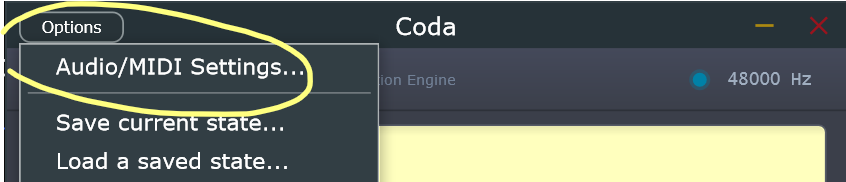
The standalone version functions differently from the plugin because it does not require a host in which to run. It runs on your desktop and carries its own host wrapper and can interface directly with your audio device through its built-in Audio/MIDI Settings panel. This works identically on either macOS or Windows, to varying degrees of complexity. When you load Coda standalone for the first time, audio will be muted by default to protect against potential signal overload.
Windows: Systemwide Routing
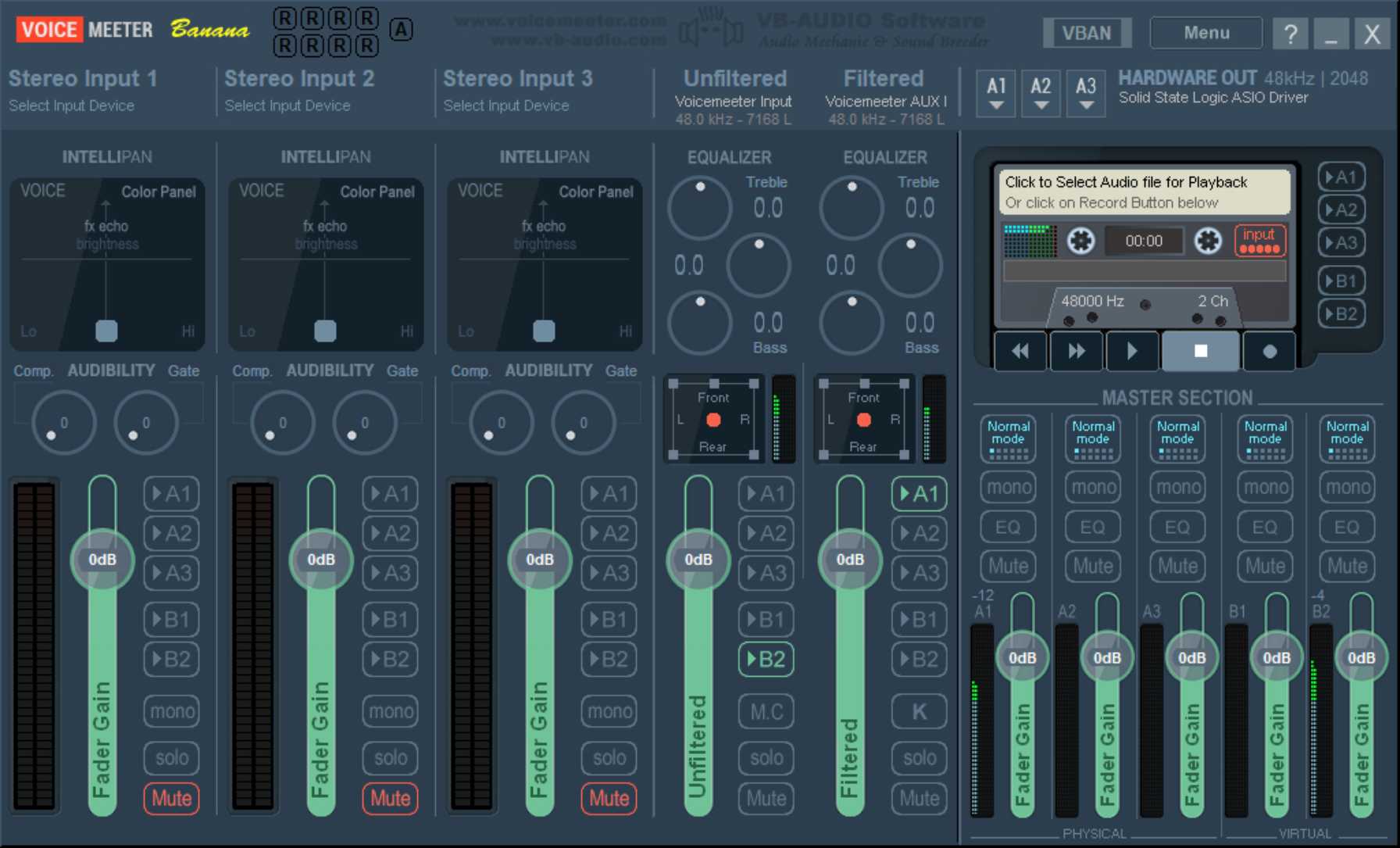
On Windows machines, the most effective way to configure Coda standalone is to use it in tandem with VoiceMeeter Banana or Potato.
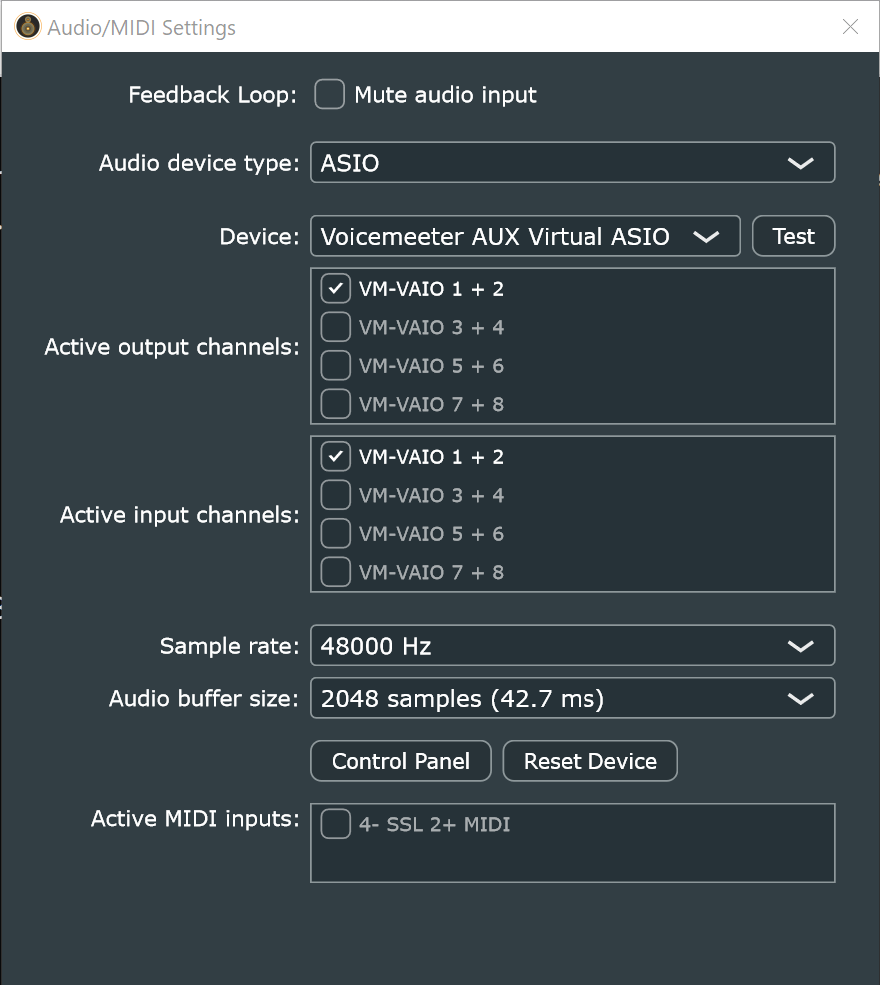
It can be configured by using the Voicemeeter AUX Virtual ASIO wrapper as the device, along with whatever input and output channels you have. Sample rate will be governed by the audio device driver itself (not from here, since this is a wrapper).
From here all that remains is to configure Banana'a mixer:
- Select your physical audio device's ASIO driver as output A1 at the top right
- Select B2 on the first virtual channel, "Voicemeeter Input"
- Select A1 as the output from the second virtual channel, "Voicemeeter AUX 1"
Finally, send all Windows audio, and anything else you want, such as your DAW, into the mixer by selecting Voicemeeter Input (VB-Audio Voicemeeter VAIO) or Voicemeeter Virtual ASIO (whichever is available), as the output device.
This simple configuration routes all system audio coming into the mixer out through B2, where it is processed by Coda and then routed to the audio interface.
With these settings in place, you have an active systemwide routing matrix.
macOS: Capture
Mac users can configure Coda in the same manner, except for one small issue: Banana is a desktop application only available on Windows. If you want, you can use Blackhole to route your audio around, but I've found this method slightly more difficult to get right than on Windows machines using the Banana configuration simply because macOS doesn't have an equivalent desktop mixer. For this reason, I have simplified the experience on a Mac by building a capture function into Coda that "listens" for any active audio streams in the system.
You can access this feature via Coda's menu. Right-click anywhere on Coda's yellow background to open it, and select Capture toward the bottom.
Active audio streams can be captured and re-routed through Coda. In addition, there is a persistent "All System Audio" option that simply hijacks all streams in the system and runs them through, even if nothing is playing. All you must do first is select your audio device in the Audio/MIDI Setting panel. After that, you're free to capture any audio you want, and thus establish a systemwide setup.
If you don't select your device first, Coda may in some cases play back audio at the wrong sample rate. If that happens, turn the capture feature off, make sure the proper device is chosen as output, and re-enable the capture function.
Listening
Listening to music through Coda is simple.
Choose Load Filter from the big blue button at the bottom of the UI, then select a filter from your computer's hard drive. Coda only supports filters generated and exported from Iris.
