Cadence user guide
Windows Installation
Navigate to C:\Program Files and create a new folder here named Aperture Audio.
Copy/paste the standalone version of Cadence from the zip into this new folder --> C:\Program Files\Aperture Audio\
Navigate to C:\Program Files\Common Files\VST3 and create a new folder here named Aperture Audio.
Copy/paste the main Cadence.vst3 folder into this new folder --> C:\Program Files\Common Files\VST3\Aperture Audio\
Mac OS Installation
Copy Cadence.app from the extracted zip and paste it into your Applications folder.
Copy Cadence.component from the extracted zip and paste it into: ~/Library/Audio/Plug-ins/Components
Copy Cadence.vst3 from the extracted zip and paste it into: ~/Library/Audio/Plug-ins/VST3
Cadence Operation
To begin using Cadence, it must be activated with a valid license. Launch the licenser application from anywhere on your computer, fill out the information fields, then hit GenerateLicense Request. A request file (crq) will be saved to your desktop. Send this file to meridiansoundinfo@gmail.com and wait for a license to be returned. Each license is generated by hand to maintain a personal connection. Please allow up to 24 hours for processing. Contact meridiansoundinfo@gmail.com for more information on licensing.
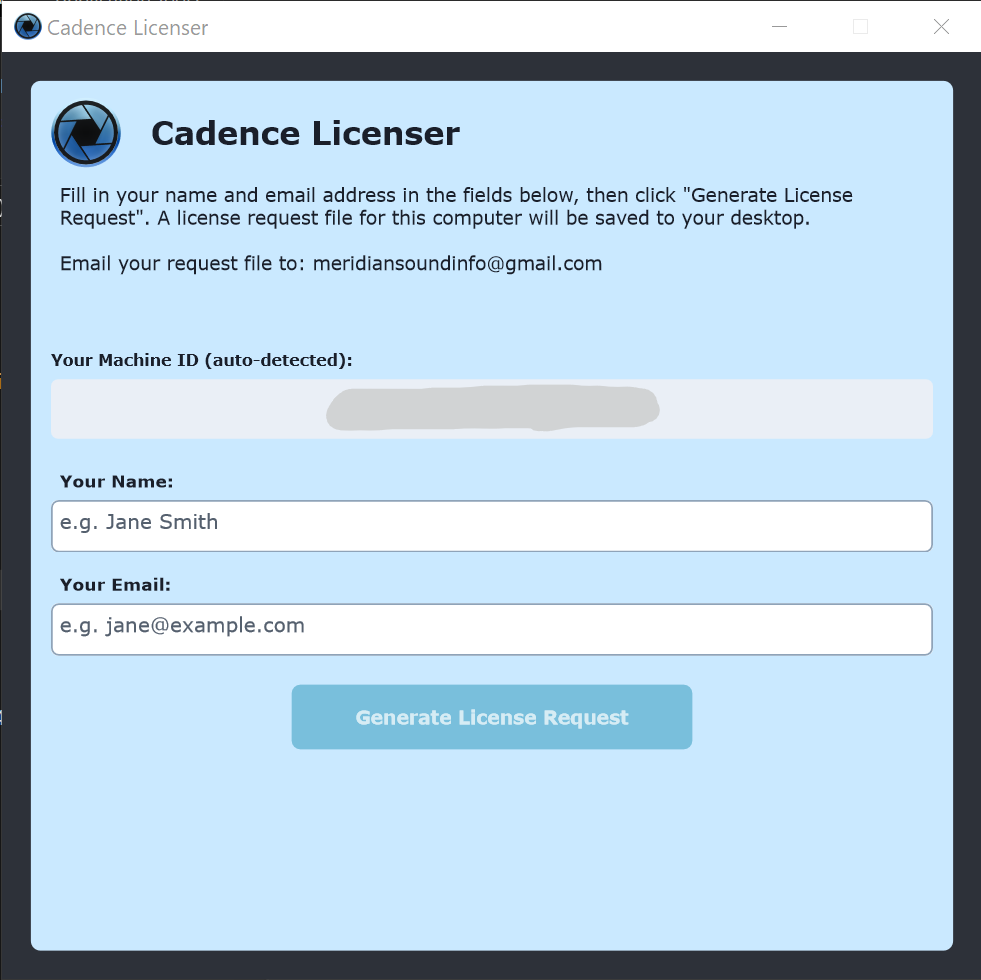
Once Cadence is licensed, you'll be able to load your headphone correction filter and prepare your personalized hearing (HRTF) profile.
To load your headphone correction filter:
1. Open the main menu from the big blue button at the bottom of the UI or via right-click anywhere on the UI.

2. Choose "Load Correction Filter..." at the top of the menu.
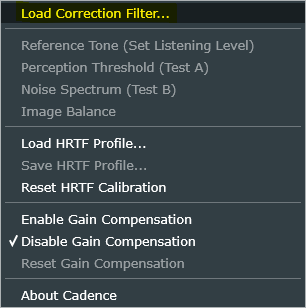
The headphone correction filter, also known as a headphone calibration profile, is fundamentally all that is needed for Cadence to process corrected audio. Headphone calibration profiles can be acquired in three different ways:
- By submitting a pre-existing calibration file from a headphone manufacturer, such as Ollo Audio.
- By purchasing a pre-calibrated pair of headphones.
- By sending your own personal headphones out for individual calibration.
In many cases, the correction profile is all that's necessary for an accurate listening experience. If, however, you want the most accurate headphone response possible, you'll need to tune Cadence to your own ears. For this purpose, a hearing profiler called "HRTF Calibration" is available below the active filter. Cadence will sequentially calculate the results of the profile's stages into the correction you hear. This calculation happens in the 64-bit domain, resulting in a single-stage filter that produces pure, clean sound.
Note: A correction filter must be loaded/active in order to calibrate Cadence to your hearing profile. You can use your headphone hardware's calibration filter or a neutral profile template, both of which are delivered as .cadence files.
To run the hearing profiler, ensure that:
- a correction filter is loaded and...
- the Correction Strength control is at 100% and...
- the processor is not in soft-bypass (check that the dot in the top right corner is blue, not amber)
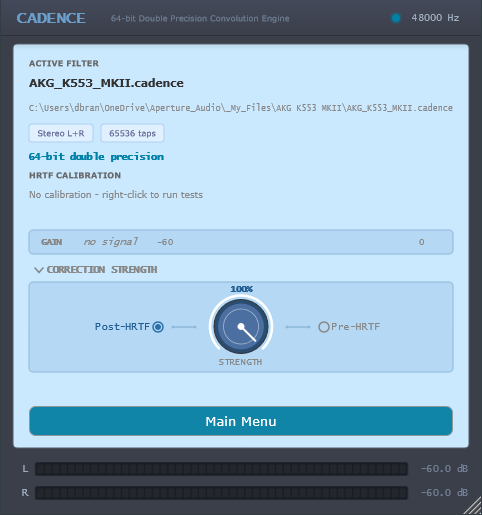
Once you have verified those three things, follow this process:
Phase 1: Reference Tone (Set Listening Level)
Think of this as a "staging" or "homing" phase that establishes a foundation for the remainder of the testing process. Aim to perform this calibration in a quiet environment free of background noise and other distractions. The success of the tests following this stage relies on establishing the correct foundation, so do your best.
From the menu, open the Reference Tone panel. Select the SWEEP test mode (STEPPED is currently experimental) and L+R ears, then follow the instructions on the panel.
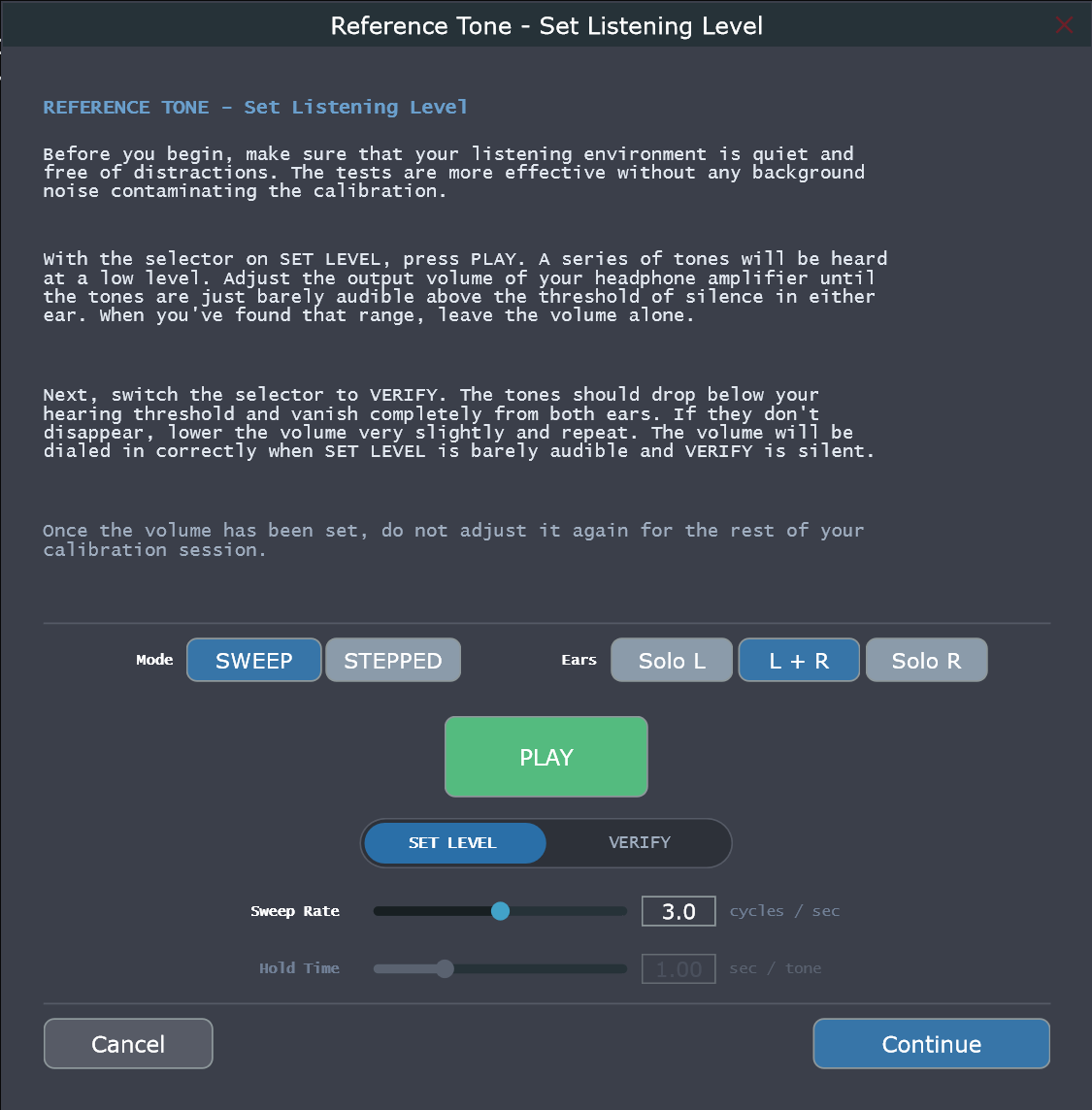
About the modes and control sliders:
The Sweep mode generates an oscillating sine sweep from 300Hz to 1kHz, at a rate configurable by adjusting the Sweep Rate slider. The default is 3 cycles per second. This parameter is included to help the sweep become more intelligible for different people. If you have difficulty with this test, adjust the slider and see if a faster or slower speed makes the oscillations clearer to your ears. This mode is generally all you need. Stepped mode, however, is a variation of the sweep that replaces the oscillator for a sequential series of steady-state tones at fixed frequencies. Some people may find that listening to the tones in this manner makes the test easier to manage. If Stepped mode is selected, the Hold Time slider activates to allow control over how long each tone is held before jumping to the next one. Finally, the ear modes provide a way to cross-check the level by isolating the test signal to one ear or the other. You'll only need this as a reference for your own curiosity. The test should be done with both ears simultaneously.
All of these controls are, in general, merely offering the user a means to make this test easier to execute. They have no other influence over the outcome of the tests to follow.
When you've finished setting the reference level, stop playback and press the Continue button. This will enable the Perception Threshold test.
Phase 2: Perception Threshold (Test A)

This test involves adjusting a panel of mixer-style knobs to set hearing thresholds for an array of frequency regions. The test is conducted for each ear individually. As before, aim to perform this test in a quiet environment free of background noise and other distractions. Ensure that you're in PSYCHO mode, then follow these steps exactly:
- Beginning with the left ear selected, press the Play button and you will hear the test tone coming from the active (yellow) knob.
- Turn the active knob to the left until you can just barely perceive the test tone at the threshold of your hearing. Note the knob's position.
- From that position, turn the knob down one notch. If you can no longer hear the test tone at this position, leave it there and move on to the next frequency knob. If, however, you can still perceive the test tone, turn the knob down one more notch and listen for it again. If you cannot hear it, leave the dial there and move on. If you find that you can still hear the test signal at the lowest position of any frequency knob, leave that frequency turned all the way down and move on.
- Repeat steps 2 and 3 for every knob on the panel in the left ear, then commit the panel to the correction filter via the "Commit Results" button. Cadence will recompile the filter to include these results and display a green light on the main user interface for the test, indicating that it has been integrated into the correction filter. It is important to note that if you switch ears or close the panel before committing the results, Cadence will not save them and you'll be required to repeat the test.

- Switch to the right ear, then repeat the previous steps. When finished, you should have green L and R lights on the main user interface for Test A, showing that it has been fully integrated into the filter.


Test A General Notes:
It can sometimes be helpful to toggle the play button off and on to double-check yourself on questionable frequencies when setting the dials. A hard stop (and restart) to the signal can sometimes help you find the right setting. Remember, you want to leave each of the dials on the setting just below your hearing threshold. If that setting happens to be the lowest, simply leave it there and proceed.
Rate & Range:
These parameters are similar in nature to the ones on the initial reference level panel, allowing you to adjust how quickly the test tones oscillate and how wide the range of frequencies is. As before, the controls exist to allow you to customize the test, nothing more.
Shelving Filters:
Disabled by default, these two knobs control independent low shelf and high shelf boosts
LINEAR Mode:
When Cadence was first being developed, the psychoacoustic hearing map used in PSYCHO mode did not exist yet. I built it from a linear base map in which all frequencies exhibited the same amount of correction energy, which is not acceptable for use in headphone calibration. However, I have left the original base map in this panel simply because it still has potential as a hearing test using speakers in rooms, but that has not yet been verified as an accurate solution. Regardless, LINEAR mode should not be used in headphones. Always use PSYCHO mode when wearing headphones.
Phase 3: Noise Spectrum (Test B)

The Noise Spectrum test becomes available when Test A is fully committed (both ears). Test B is essentially a loudness balance check against the previous test's results. Play the noise and you will hear the test frequencies through the current state of the filter, which contains the sum of the active headphone calibration filter and your Test A results. Audition each of the purple knobs' frequencies in both ears together (no solos active) on the Test B panel, checking for any frequencies that sound as though they are being played back at a noticeably different volume than the rest. Chances are that you will not have to adjust this panel's controls much at all, since Test A will have smoothed out most of your perceived response in each ear. Test B is meant to be a verification pass of the first test's results for equal perceived loudness contour using a different test signal across the spectrum. Do not feel obligated to make major adjustments here. If you do not perceive any volume differences between the frequencies, leave them at their default positions and commit the panel. If, however, any frequencies sound as if they are louder or quieter than the others, adjust them slightly to fit into the overall loudness contour. Commit the panel when you're done. Cadence will recompile the filter to include the result and show corresponding green L and R lights for confirmation.

Test B Notes:
- This test is meant to be performed faster than Test A and its results are based on immediate subjective perception, which is not a concrete state. Our ears are easily fooled by sustained state adaptation, which doesn't take long to achieve. So, go through it quickly and don't dwell on any one frequency for more than a few seconds. Compare the frequencies to one another, in any order, and trust your ears' first impression of any differences you hear. Don't fall into the trap of doubting your moves because you've been scrutinizing for extended periods and have lost perspective. Don't feel compelled to tweak every knob either. If you do not perceive any need for an adjustment at any given frequency within a second or two, don't make one. You may not feel like it is necessary to make many adjustments at all in this test, and that's perfectly fine. Remember this: if in doubt about what to do, do nothing! You're probably in great shape already! Arbitrary adjustments based on false confidence are your nemesis here.
- The solo buttons are there to provide listening perspective only. The knobs in this test panel do not govern individual channels. They affect both channels equally.
- You can always come back to this test later and tweak it if you notice that something is out of line somewhere. Maybe you had mistakenly boosted the high frequencies too much when testing, and all your most trusted reference songs are now too bright. Go turn those high knobs down a notch or two and commit the test panel again. Think of it as a sort of tune-able equalizer for your eardrums.
- A full-range toggle is provided to audition the full pink noise spectrum as you tweak, but it is currently an experimental feature, so don't rely on it for too long. If the full-range noise sounds balanced, it probably is.
Shelving Filters:
These are provided here as well for verification. Activate them if you wish to control the amount of bass or air in the character of the sound. As always, use them only to compensate for any imbalances your hear in the test as well as your music references. Be aware that boosting excessively here will result in additional perceived gain loss, so use them sparingly and try not to get carried away.
Phase 4: Image Balance

The final panel becomes available once Test B has been committed to the filter. Here you will go through the frequencies as before, quickly ensuring that all frequency regions sound perfectly centered between your ears. The green knobs on this panel are pan controls that you can use to center the sound of any given region if it sounds like it is leaning to the left or right. Again, do not feel compelled to make adjustments if none need to be made. The filtered sound should be very refined now, so trust it and act on what you hear. Commit the panel and Cadence will compile the final filter and give you a green BAL light.

Note: Don't worry if, after committing the Image Balance test results, you don't see a BAL light. Cadence will not display a BAL light if the test panel is committed with all dials centered. There is reasonable probability that you won't need to adjust any of the balance dials. If that is the case for you, there will not be a BAL light. This is not a fault of Cadence nor of your own. It simply means that balancing is not necessary for any of the frequency regions.
Phase 5: Total Recall
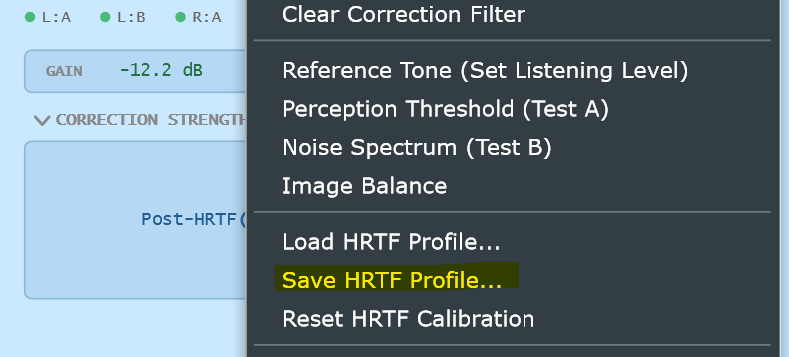
Save your profile! Don't lose your hard work! The menu offers a "Save HRTF Profile..." option that allows you to save your carefully-tuned test results to a file with a .hrtf extension. You can save and recall as many profiles as you wish. Load in whatever profile matches your current headphones or listening preferences.
Phase 6: The Truth and The Trickster
Cadence's success rests in your ability to trust what you hear. Throughout the testing process and beyond, trusting your ears is imperative. Your ability to maintain consistency is paramount as well, and in order to do that, you have to calibrate your brain as well as your headphones. What that means is that it's critical to refrain from swapping the correction in and out of bypass. Similarly, leave the Correction Strength control alone while you grow accustomed to your new calibration profile. It is of the utmost importance to learn to trust it. Bypassing correction or adjusting the strength too early, or doing so too often, creates a trickster - a shape-shifting sonic character in which all changes and differences seem arbitrary and wrong. This becomes a state of confusion and doubt that prohibits your brain from locking onto the true consistency factor. The longer you linger in this clouded state, the harder it is to know what's true. You cannot expect to be able to trust what you hear if it is constantly changing its shape.
Cadence Features
Correction Strength:
This is a powerful feature that allows you to seamlessly blend the raw characteristics of the headphone unit back into the output signal along with the filtered/corrected sound.
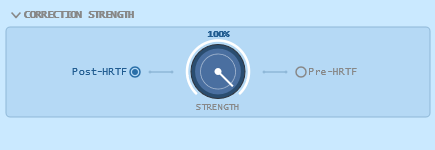
I've included Correction Strength as a "tonal preference" feature. However, it also comes with a lot of responsibility. It's intended mostly for those who may enjoy the raw character of their headphones and want to blend some of it back into the filter. But as the need or requirement for accuracy increases, the strength amount should be set increasingly closer to 100% in accordance.
Routing:
The Correction Strength control can be placed either before or after the HRTF profile in the signal path within Cadence. Its position is indicated via the Pre-HRTF or Post-HRTF radio buttons on either side of the Strength knob. For most use-case scenarios, Post-HRTF is a perfectly normal position. In Post, the full composite filter is influenced by placing the Strength control at the end of the signal chain. However, there may be certain circumstances when you want to adjust the influence of the hardware calibration filter while leaving the HRTF profile stage unaffected. In those cases, select Pre-HRTF to position the Strength control between the hardware filter and the HRTF filter.
Level-Matched Bypass:
Due to the attenuative nature of correction filtering and how Cadence processes audio, hard-bypassing or disabling the processor in a DAW will result in a sudden volume jump. This is not an issue with the standalone version, but in a DAW using the plugin versions you should be careful. To avoid damaging your hearing, I've included a soft bypass feature that maintains unity gain between the raw sound and the processed sound. You'll find the level-matched bypass button on the right side of the header bar, just to the left of the sample rate display. The button is a blue dot when Cadence is processing the signal, but changes to golden amber when it is soft-bypassed.
Automatic Gain Compensation:
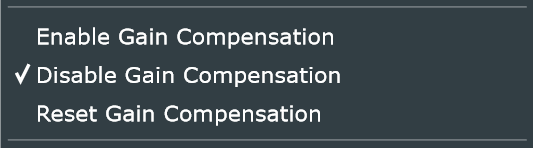
Cadence is intended to provide an accurate calibrated listening experience to everyone, from audiophile listeners to studio engineers. For those who simply seek headphone correction for enjoyment or casual listening, a safeguard is built in to automatically prevent audio signals from clipping the output stage of the processor and introducing distortion. The guard is not a limiter, as you may imagine. This is by design, as a limiter would impose a small amount of non-corrective distortion to the signal. Given that introducing any distortion of this nature goes against core Aperture Audio principles, I made the decision to build the guard as an attenuator instead. It simply turns the output volume down by the amount of the clipped overage value, plus 1 dB. It holds the output level there indefinitely, unless another peak comes along to push it down further. In casual listening scenarios, where essentially all playback material is mastered, this is a great feature to enable for peace of mind. However, when using Cadence in a studio environment, such as in a digital audio workstation where there are free and open channels within a mix, it is desirable to have control over the output level so that sudden clipping on a random channel doesn't trigger Cadence to drop the gain. Since DAW overs can involve extreme clipping values, this would drop the gain significantly and require a manual reset every time it happens. Since Cadence was initially designed for studio use, the feature is disabled by default. It gives you a gain slider with which to control the output level. Enable gain compensation if you are listening to mastered, released music sources that don't inherently cause clipping.

Neutral Template:
The download folder includes a free linear profile called Neutral_Template.cadence which can be used in testing scenarios or for creative applications. The neutral template is completely flat, imparting no coloration whatsoever to the sound. It serves as a placeholder or proxy when you only want to use the HRTF filter stage without calibration for your headset hardware.
Capture Source:
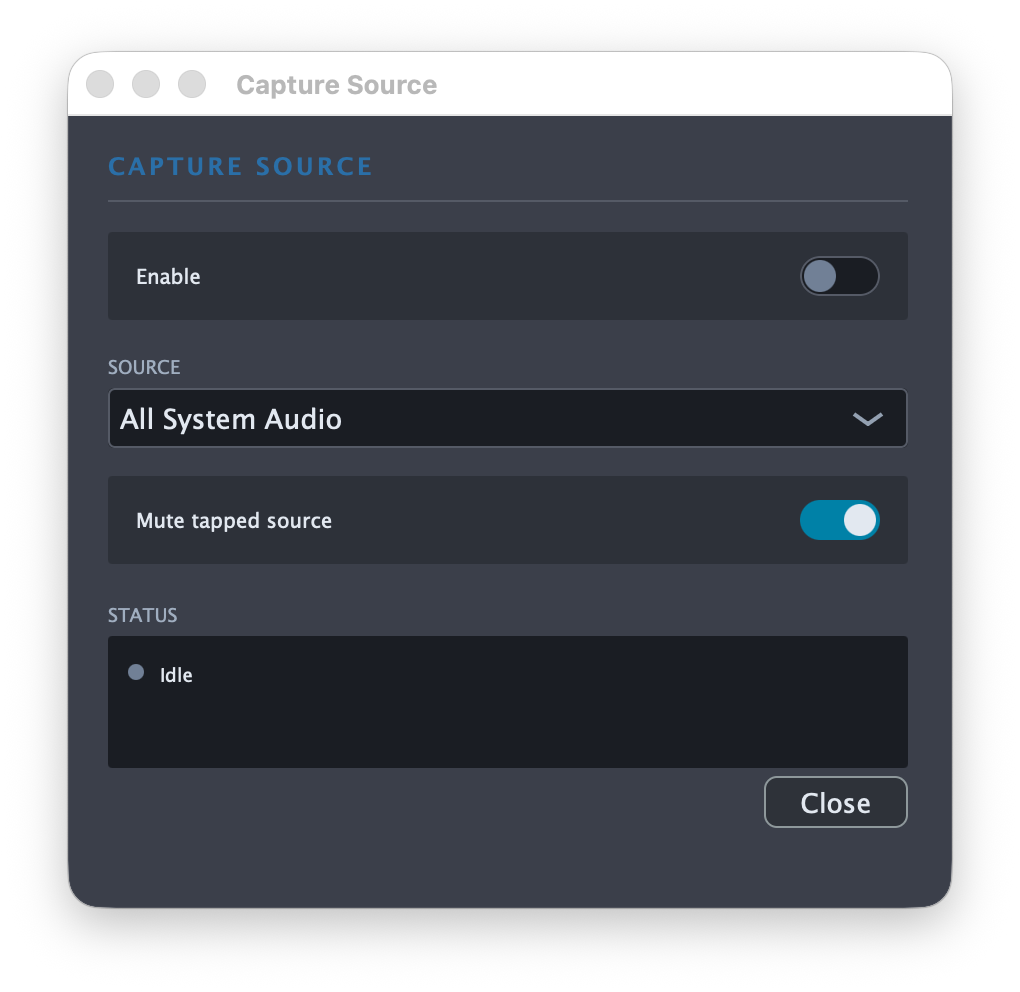
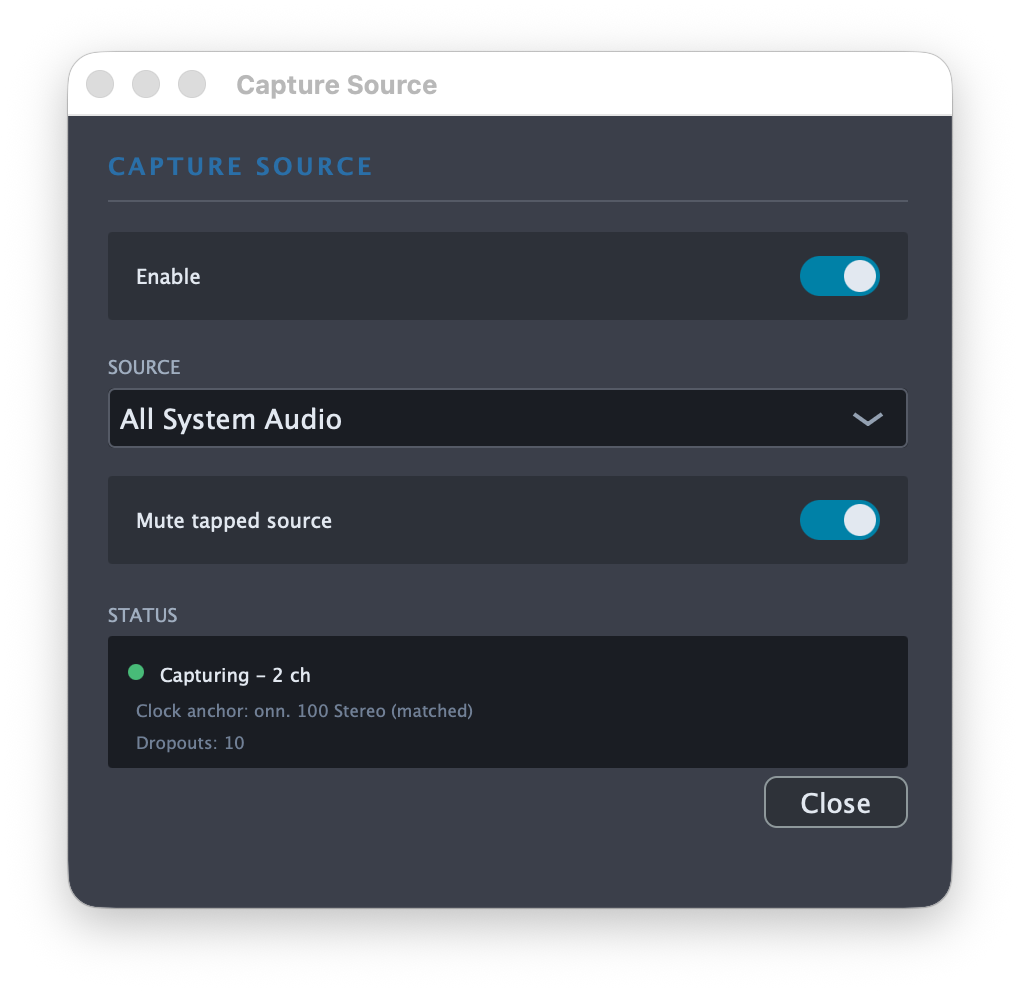
The standalone version of Cadence on macOS has a special feature that allows it to listen for actively running audio streams and route them through it. Sources can only be tapped into if they are playing when the capture panel is opened. For convenience, All System Audio is available as a default source at all times. It routes the entire system through Cadence rather than any given individual source. In this way, Cadence can be used as a systemwide audio processor.
Simply open the capture panel from the menu, select a source from the list, and activate the Enable switch. The audio stream will be pulled in and routed through Cadence's filter.
Mute Tapped Source will automatically silence the original stream to prevent it from being heard from anywhere other than Cadence.
The status section at the bottom shows the health of the stream along with other stats.
If you are running Cadence standalone on Windows, you will not see the capture feature. There are ways of routing audio in a systemwide manner on Windows, but those methods currently involve using 3rd-party software, such as Voicemeeter Banana or Potato. Windows simply doesn't have the Mac's ability to tap audio sources.